
Routes module
Building a Route
On the Routes page, create a new route and give it a Route Name. Set Assigned Days — the days of the week this route runs. Set Agents by Day — who runs...
- On the Routes page, create a new route and give it a Route Name.
- Set Assigned Days — the days of the week this route runs.
- Set Agents by Day — who runs the route on each of those days.
- Add stops to the route, from the stops table or by moving a selection.
- Order the stops using Move up and Move down so they run in driving order.
- Set the route Active and save.
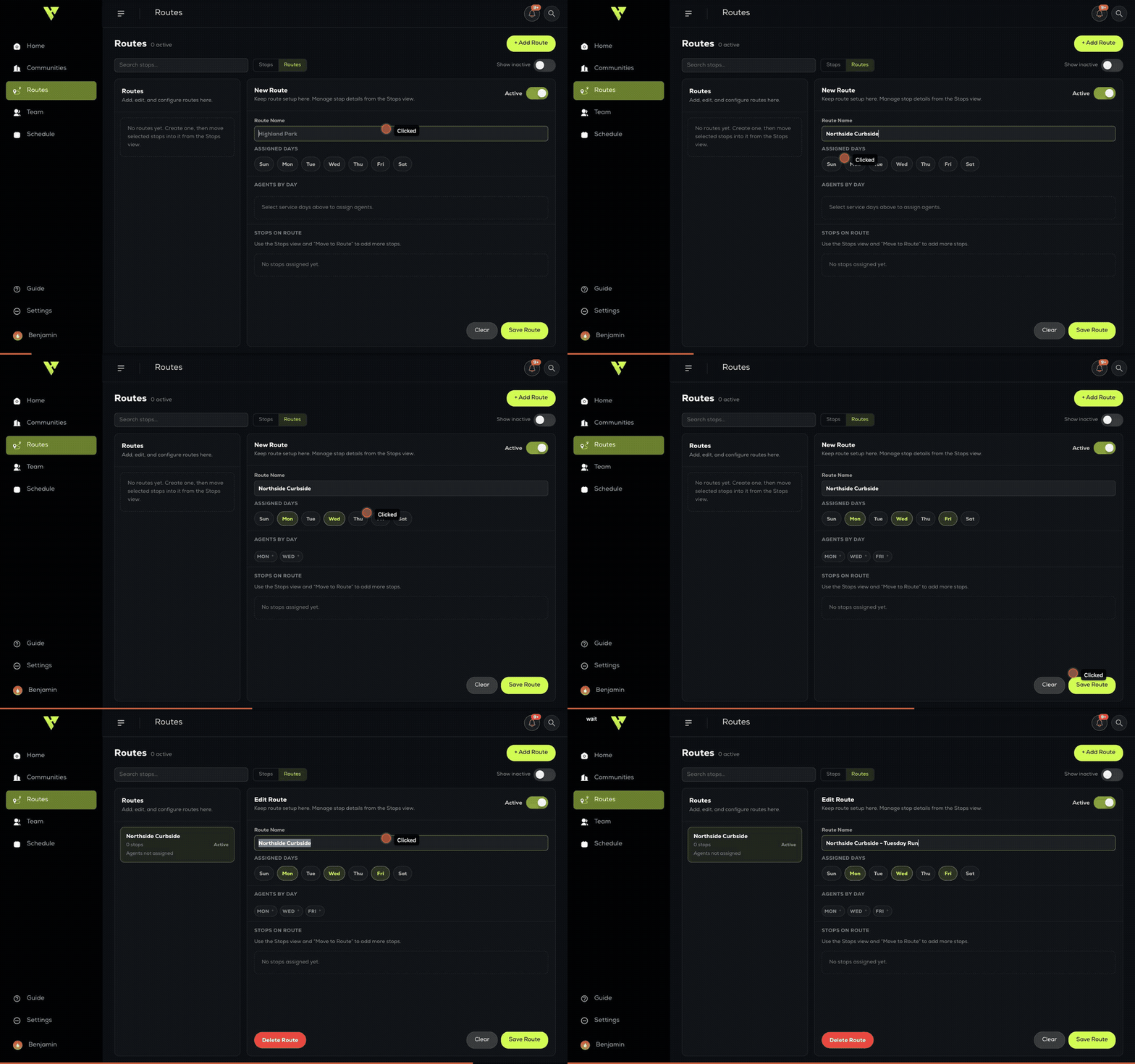
Notice that Agents By Day fills in the moment you pick your days. Days and crew are part of the same form and save together, so you will not end up with a route scheduled on a day nobody is assigned to.
Agents by day
A route can have a different agent on each day it runs — Monday and Thursday do not have to be the same person. Assign agents per day rather than per route.
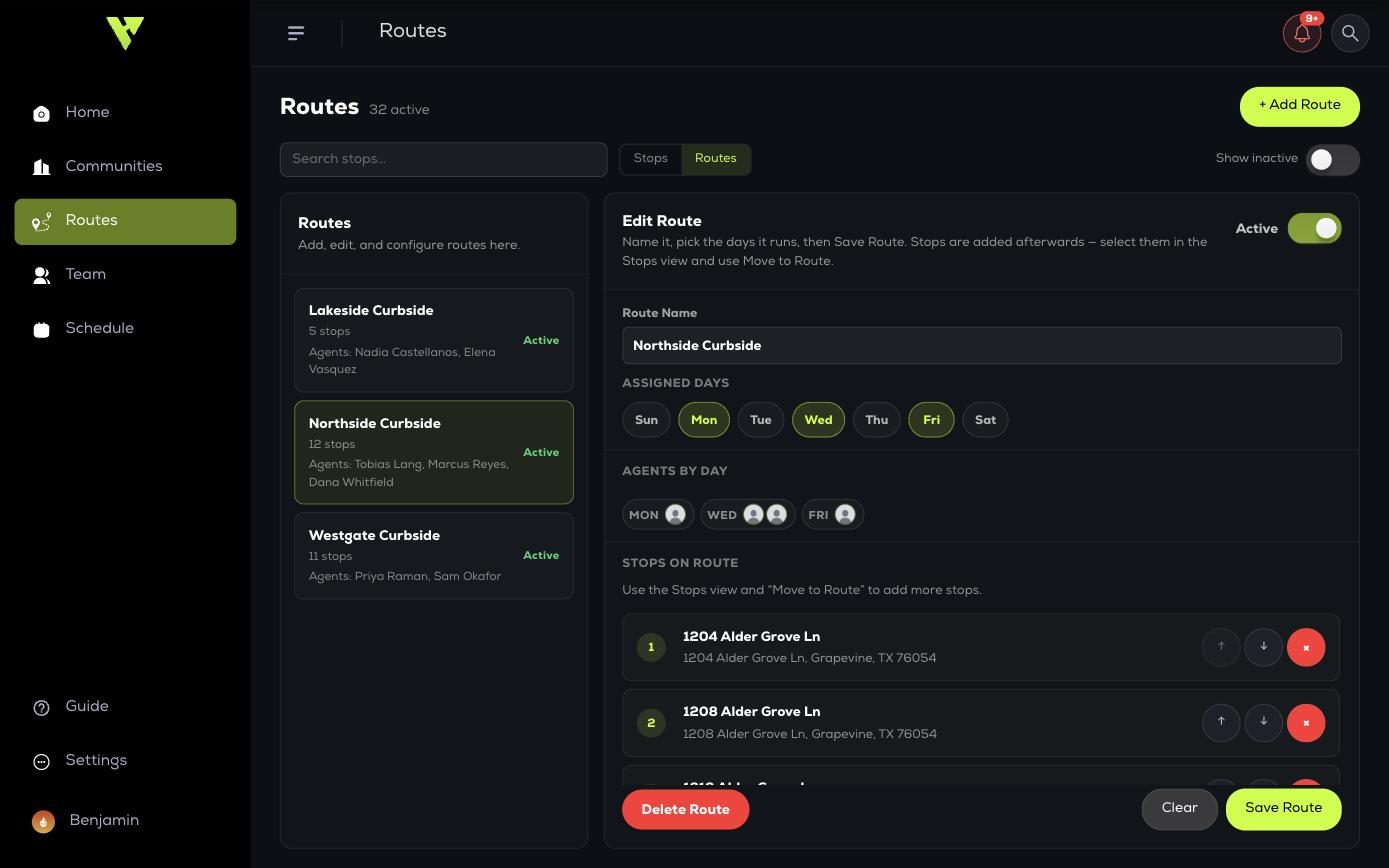
Stop order matters
The order in Stops On Route is the order your agent sees in the mobile app. Reorder it to match how you would actually drive it.
Removing stops and deleting routes
- Remove from route — takes one stop off the route. The stop still exists and becomes unassigned.
- Clear stops only — empties the route but keeps the route itself, with its days and agents intact.
- Delete route entirely — removes the route. Its stops are not deleted; they return to unassigned.